

You may or may not be familiar with the concept of ad blocking. If you have no idea what this means, it’s essentially when you use a web browser to visit sites like ESPN.com, and you see all the stuff on the screen that has nothing to do with the site, otherwise known as advertisements. Sometimes, you’ll click (or tap) on the thing, not even knowing it’s an ad. Other times you read it, and it passively influences you based on things you may or may not need or want. It’s how all the bills get paid by the websites you visit. Nothing is free.
Ad blockers are built into many browsers, often within the Privacy Settings. They will have various settings you can tweak to tighten up the ad-blocking and generally are not the best. Or they are part of a browser plug-in, like uBlock Origin, and tend to be much more effective out of the box.
Benefits of ad blocking include the improved experience of de-cluttered web pages (browsing ad-free) as well as improved performance and improved privacy.
If you are like me, you have more than one device, and picking one browser you use on every device is helpful for things like shared favorites/bookmarks, sending/accessing tabs across all your devices, and general familiarity with how the browser options work. Your decision on this may even be different between home and work.
Popular browsers include Google Chrome, Microsoft Edge, Apple Safari, and Mozilla Firefox. You may have also heard of others like Brave, Opera, DuckDuckGo, Samsung Internet. Then there are some others like Bing, Firefox Focus, Opera Mini, Yandex, and the list goes on and on.
So let’s cut to the chase. How do you know if your ad-blocking is working beyond the visible difference on sites you visit? Look no further and visit the Toolz Adblock Test site below.
https://d3ward.github.io/toolz/adblock
Here are a some test results to demonstrate.
Grade C: Google Chrome on Android (or iPhone/iPad iOS) with all Privacy Settings enabled. Limited to no ad blocking and privacy-related features. They also do not allow for browser add-ons like uBlock Origin. The Google App on Android and iPhone/iPad is a dedicated search app that acts as a mini-browser of sorts. This suffers from the same near-zero ad blocking as the parent Google Chrome browser. The Google app on Android gets a Grade A/B as it permits you to open the site with your browser instead of in the Google app (Settings > Other Settings > Open web pages in the app, change to Off). This is not possible on iPhone/iPad, which is a shame as the Google feed is a really nice feature for topics of interest to you.
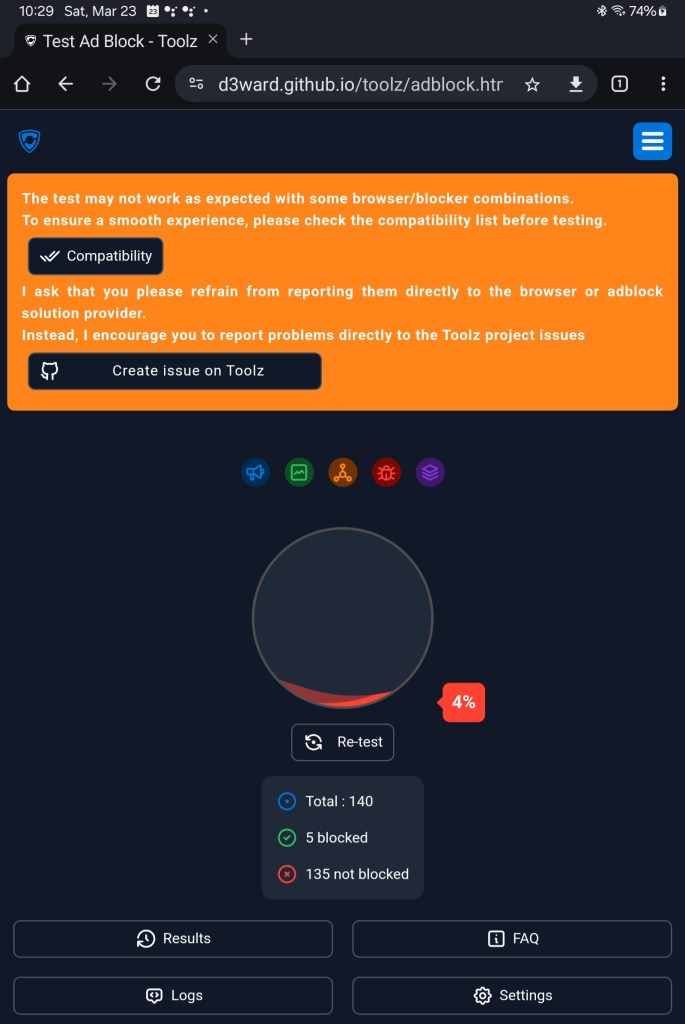
Grade C: Mozilla Firefox on Android (or iPhone/iPad iOS) with with Enhanced Tracking Protection set to Standard (default). Has some good ad blocking and privacy-related features, providing you configure them.
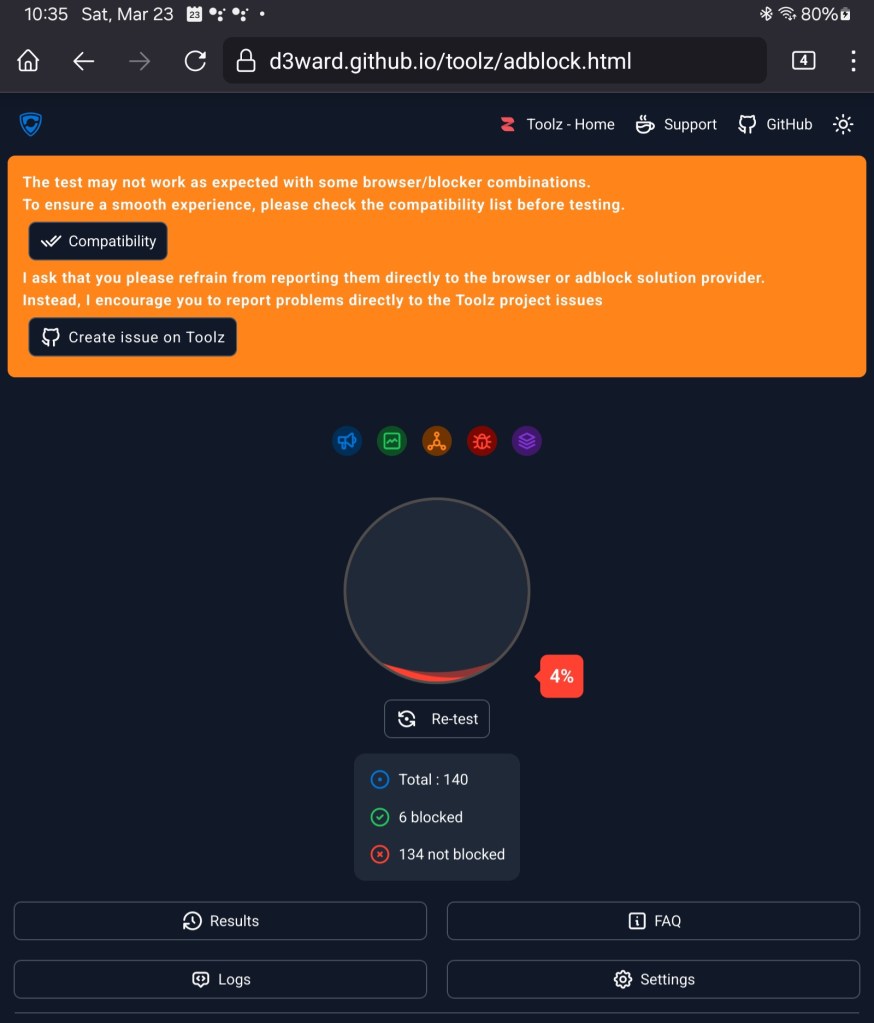
Grade B: Mozilla Firefox on Android (or iPhone/iPad iOS) with Enhanced Tracking Protection set to Strict.
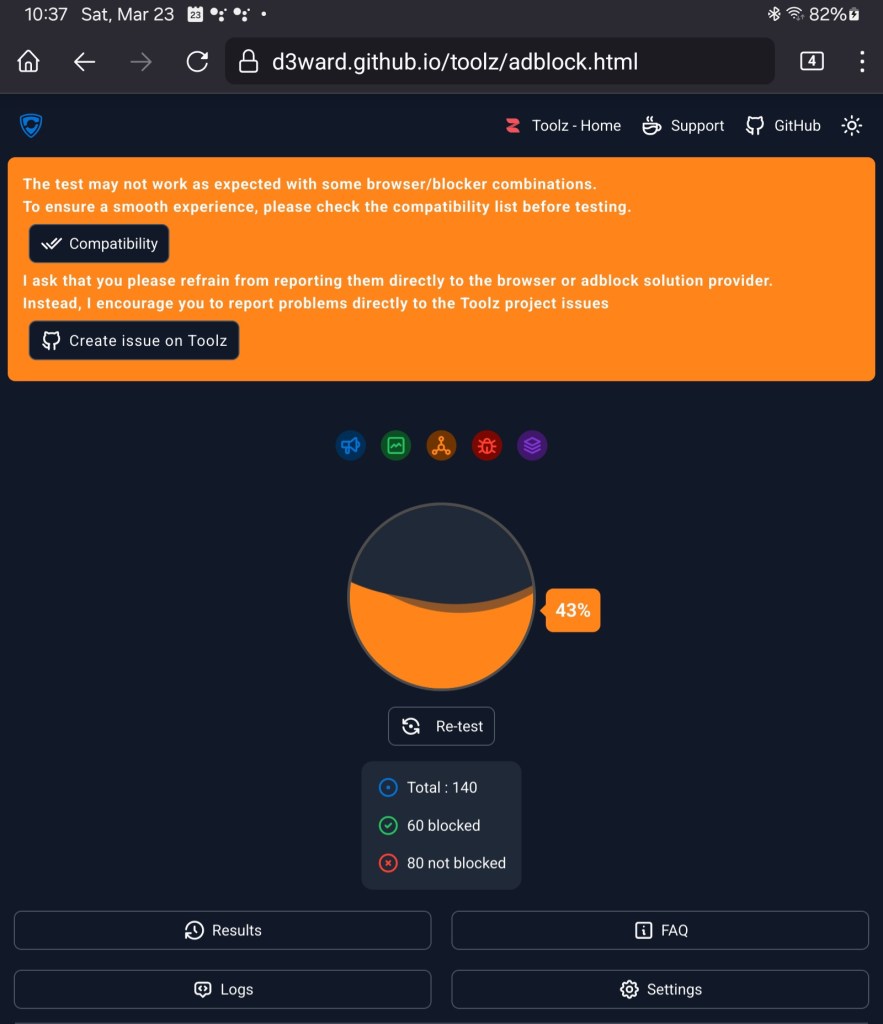
Grade A: Mozilla Firefox on Android with uBlock Origin (not supported on iPhone/iPad iOS).
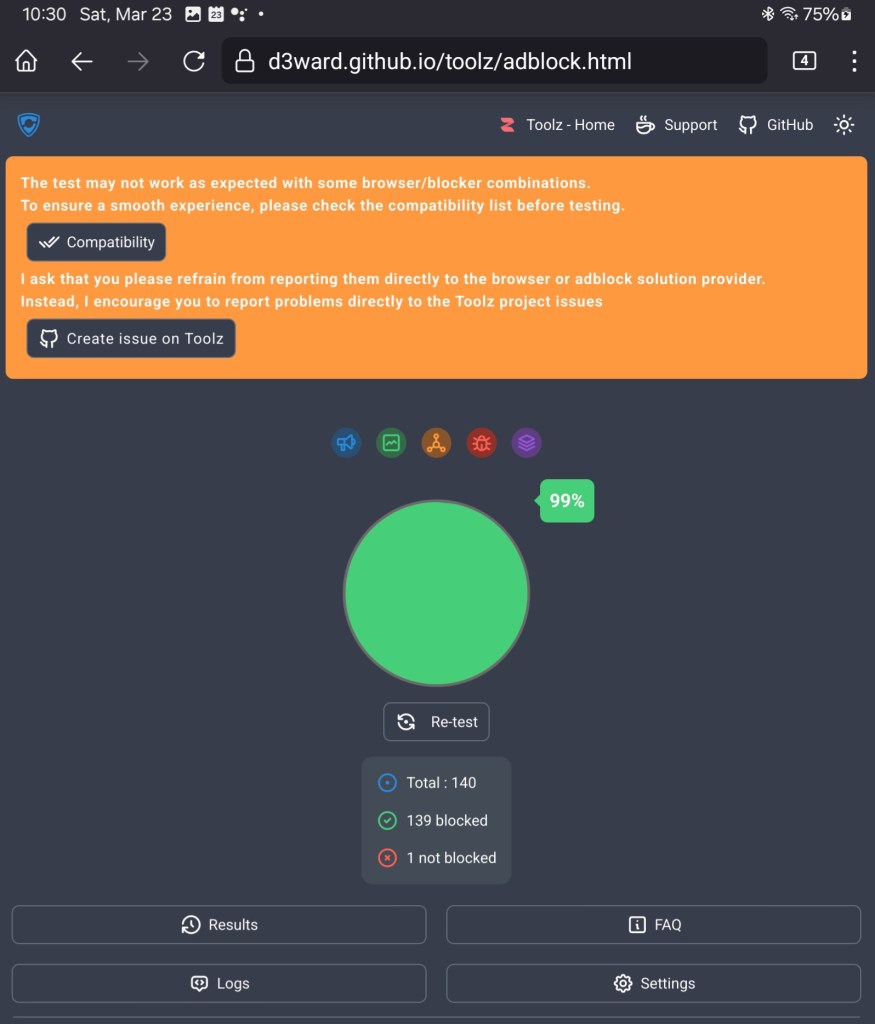
Grade C: Microsoft Edge on Android (and iPhone/iPad iOS) with Tracking Prevention, Block Ads, Do Not Track all set to Off (default).
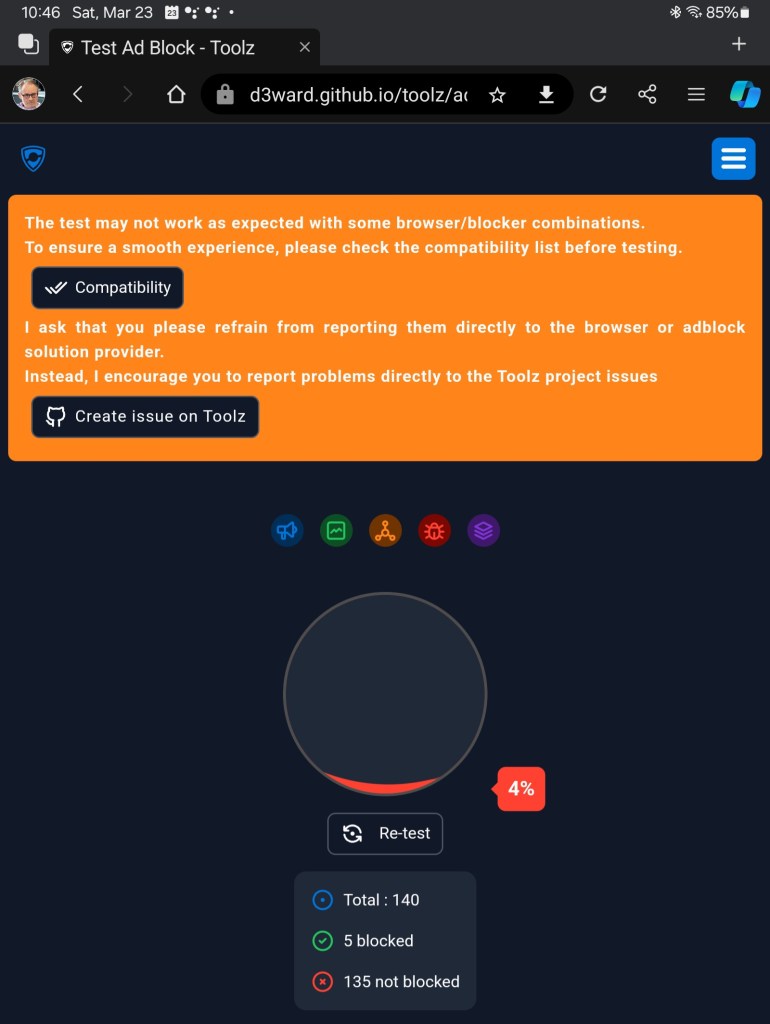
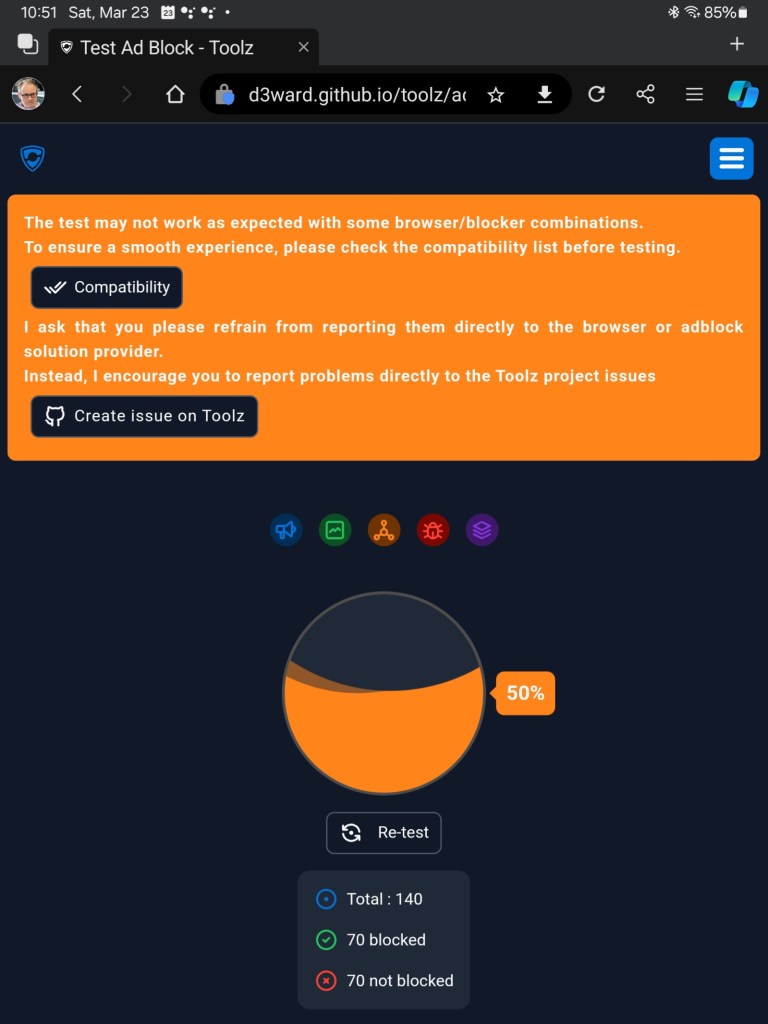
Grade B: Microsoft Edge on Android (and iPhone/iPad iOS) with Tracking Prevention set to Strict, Block Ads set to On (Allow acceptable Ads set to Off), Do Not Track set to On. Bing App on Android and iPhone/iPad is almost a carbon copy of Edge, and incorporates some subtle feature differences.
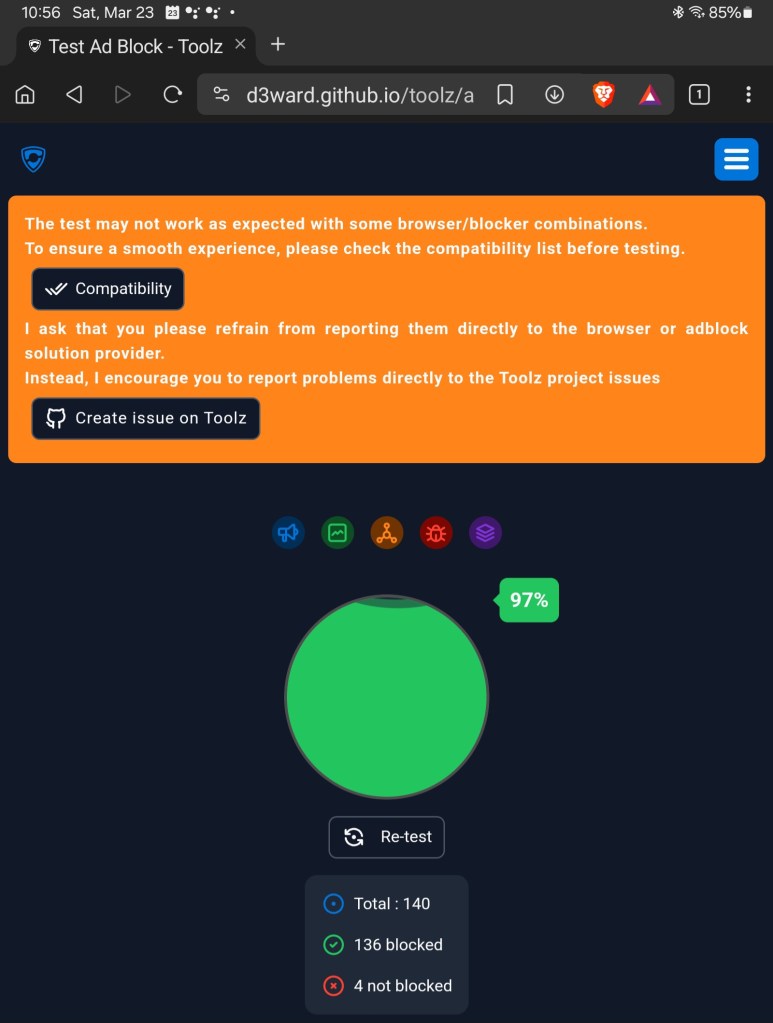
Grade A: Brave on Android (or iPhone/iPad iOS) with no configuration is clearly a great choice. There are also additional configurations if you look at the settings.
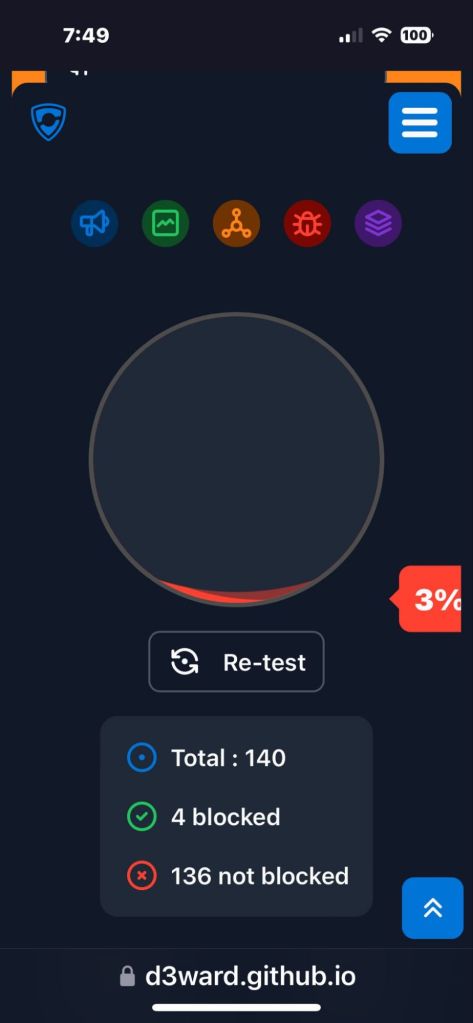
Grade C: Apple Safari on iPhone/iPad iOS with Do Not Track all set to On.
You may have noticed that the focus of the tests above have been on phone/tablet devices. This is because there are some notable differences to what we know to be true on laptops and desktops, and it’s the typical use case scenario for most people these days.
The main difference with laptops/desktops is all the browsers allow add-ons like uBlock Origin. So it goes without saying that regardless of which browser you are using on your laptop/desktop, you can tweak the browser privacy settings and install uBlock Origin for a Grade A, ad-free, and private browsing experience.
Depending on your various devices, and if you choose to use the same browser on every platform, these ad-blocking differences may help you achieve a more consistent experience across all your devices.
My recommendations, and has guided my own decisions:
- aim for Grade B or higher
- Avoid Google Chrome on Android and iPhone/iPad
- Avoid Apple Safari on iPhone/iPad
- For desktop and laptop, always install uBlock Origin
For my personal life, I exclusively use Mozilla Firefox on Windows and Android. For work, I exclusively use Microsoft Edge. In all cases I have uBlock Origin installed and I do not use any iPhone/iPad devices.
If you are a Firefox user, there are some scenarios where using Microsoft Edge is helpful. Reasons I use Microsoft Edge include the amazing Read Aloud feature, HDR support for video content from YouTube, and the ability to install a site as an app, which is very cool.`
Which browser(s) do you use any why?




 techtips.walshaw.me
Leave a comment