
I’ve used the headphone jack on my various computer monitors, for so many years, connected to my old JVC stereo receiver and a pair of 3-way bookshelf speakers by JBL. With the computer as the audio source, for stereo music, movies, YouTube, and streaming, it’s the best. Using the headphone jack on the monitor was helpful so that any input (e.g. HDMI) would have the benefit of outputting audio to the main speakers in the room. Emphasis on stereo only, as it’s the hand-me-down equipment from the living room, where a 5.1 system is used.
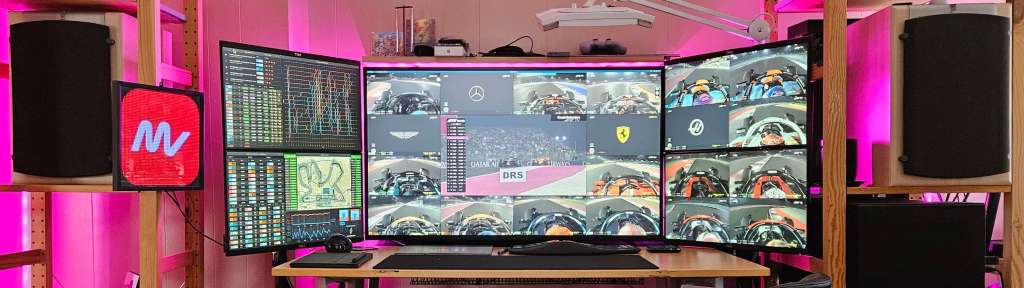
I also run multiple monitors, and will sometimes fire up an HDMI streaming device or SmartTV app on the main screen, sometimes with and sometimes without the computer running on the other screens.
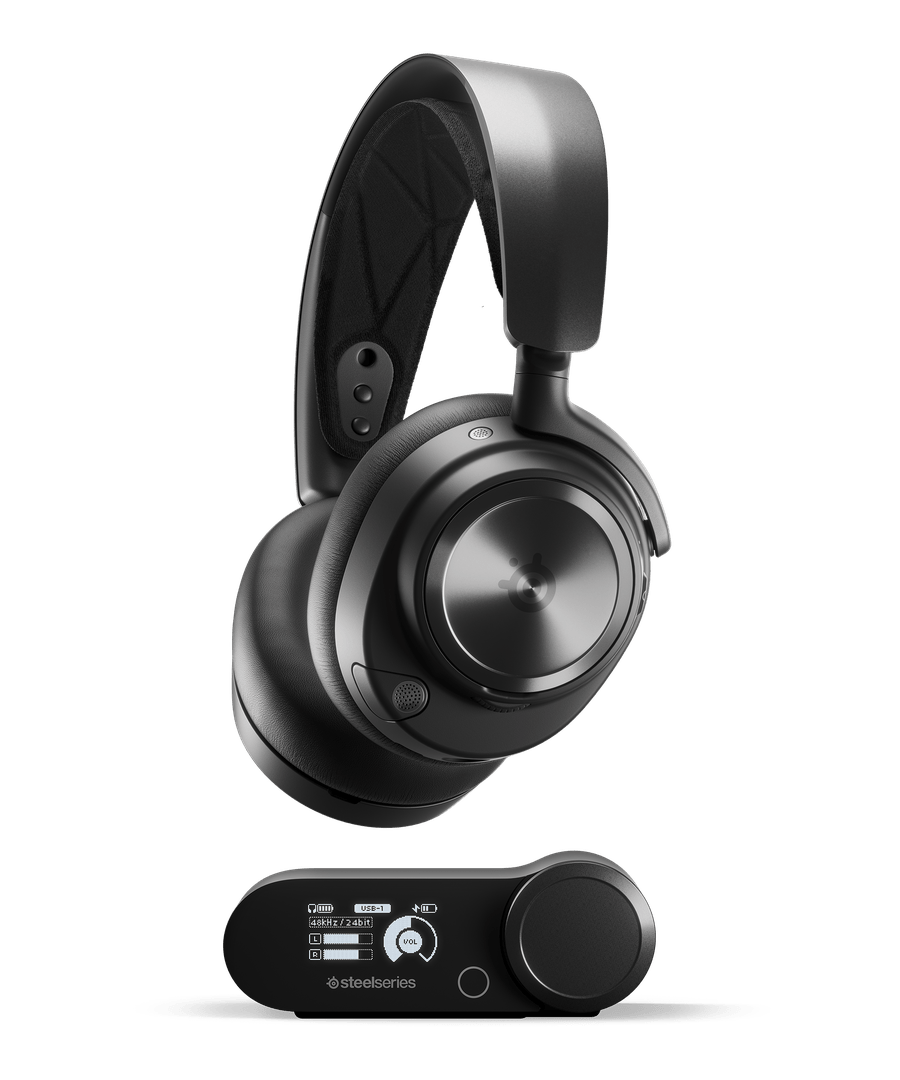
Recently I decided I’d like some wireless stereo headphones to use at my desk and set about doing lots of research. The title of this post gives away what I settled on.
Product versions and pricing, which were correct at the time of this writing, are below.

Wireless PC and PlayStation (generic USB) version:
$300 USD New https://amzn.to/42Ubn1J
$180 USD Renewed https://amzn.to/48DcRi8
Wireless PC and Xbox (proprietary USB) version:
$300 USD New https://amzn.to/3Td7eCO
$202 USD Renewed https://amzn.to/3UMn0FQ

Wired PC and PlayStation (generic USB) version:
$218 USD New https://amzn.to/4bNdW9N
$124 USD Renewed https://amzn.to/3UTOUj7
Wired PC and Xbox (proprietary USB) version:
$219 USD New https://amzn.to/3wvbX9Y
$170 USD Renewed https://amzn.to/3wnC3eQ
There are wireless and wired versions of the Arctis Nova Pro by SteelSeries. I decided to go with the wireless version for the added flexibility of being un-teathered. I can’t believe I waited this long for my first ever computer gaming headset purchase that wasn’t focused on Teams and Zoom meetings.
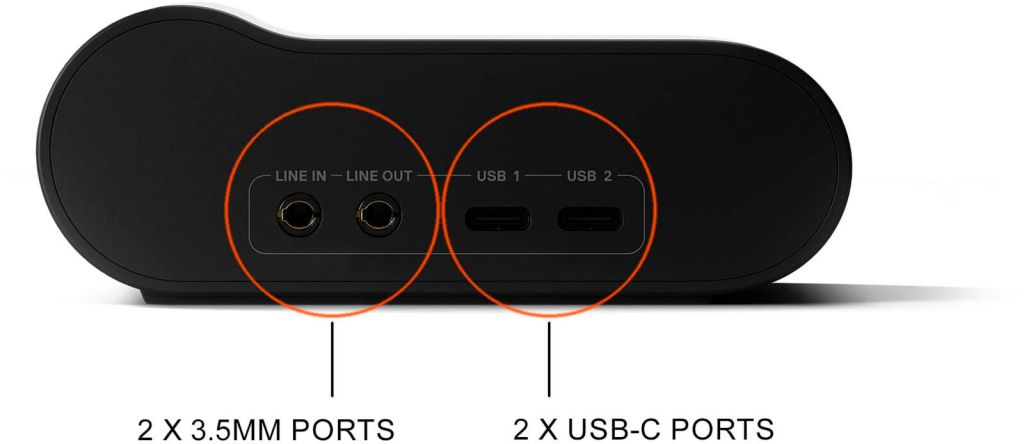
To kick things off, I’ll focus on how I have this physically connected.
- Headphone jack from the computer monitor connects to the line-in on the Nova Pro base
- Nova Pro base line-out then connects to the JVC receiver where the stereo speakers are connected.
- Computer connects to the USB 1, via a powered USB hub. The powered USB hub is really helpful because when the computer is off, the powered USB hub maintains power and therefore the Nova Pro base remains powered on. This preserves all the features of audio routing, eliminating the need for the computer to be powered on
For configuration, and to force Nova Pro base USB sound device for all audio routing:
- GG Software > Settings > Sonar > Backup device switch > Device Priority List > Game > Playback Devices > set all devices to = Exclude from all channels.
- Alternatively, Control Panel > Sounds > Playback > Disable on all devices that are not related to SteelSeries Sonar or Arctis Nova Pro Wireless
- Alternatively, GG Software > Settings > Sonar > Backup device switch > Automatic Backup Device Switch = OFF, but has the disadvantage of disabling auto switch of microphone when headset is powered off, e.g. web cam.
- GG Software > Engine > Gear > Arctis Nova Pro Wireless > Audio > Output = Speakers (eliminates adding microphone to 3.5mm Line-Out, which Stream otherwise will include)
Result:
- Wireless headset OFF: The audio routes to the JVC receiver via the Nova Pro line-out
- Wireless headset ON: The audio routes to the wireless headset only.
- HDMI streaming device (or SmartTV) in use while computer on or off will route audio correctly via the Nova Pro base line-in to the JVC receiver (wireless headset OFF) or wireless headset (wireless headset ON)
- Automatic audio mixing of HDMI streaming device (or Smart TV) with the computer audio which is seriously cool. This works with or without Sonar enabled in the SteelSeries GG software. This is why we follow the software configuration steps in the prior step above.
There are two or three versions of this product, the difference being that one has support for Xbox on a USB input and labelled as Xbox instead of USB.
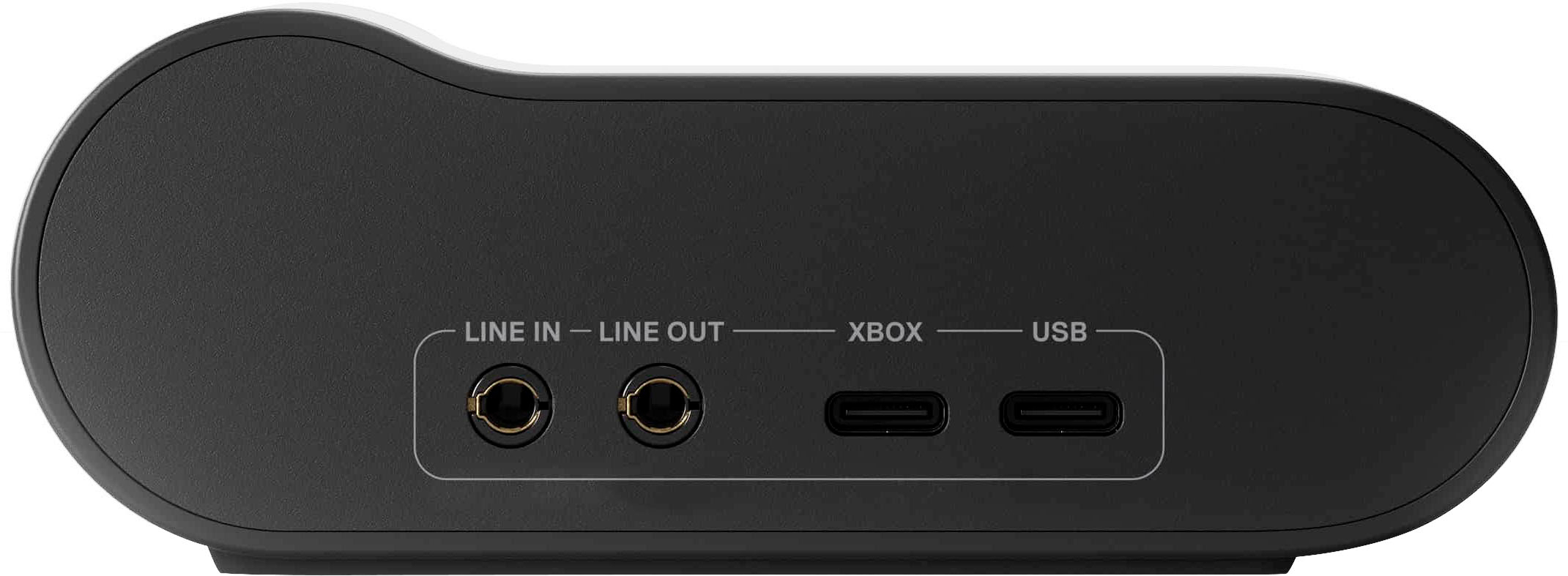
I recommend against the Xbox version, unless you are planning to connect an Xbox to it. Based on testing the Xbox version, the Xbox USB input is a limited/proprietary USB audio device. Yes, it will work on an Xbox, a PC, and maybe a PlayStation. But on the PC, the Xbox USB port shows as an Xbox headset, and the functionality is limited in terms of using with the GG software and amazing Sonar capabilities. So it will not be ideal for connecting to a second PC (e.g. work laptop). Also, it will not function as USB C audio device for Android or Smart TV that support audio USB devices. The non-Xbox variant has more flexible use case of USB-1 and USB-2 inputs.
GG Software with Sonar (https://steelseries.com/gg/sonar/download)
The GG software is pretty complicated at first, as are the Nova Pro base, on-screen display settings. But like all things, spending some time to understand things all make complete sense after some playing with it.
Something really interesting happens in the GG software when you power the wireless headset on and off. Basically, wireless headset on, triggers the GG software to set the Microsoft Windows audio and microphone devices to the wireless headset. Whereas with the wireless headset off, triggers the GG software to change the audio and microphone to the next available audio and microphone devices, e.g. speakers and webcam. It does this with a slew of virtual devices named SteelSeries Sonar.
In my case, this is where the audio route would have changed to the DisplayPort/monitor Windows sound device. For me this was an unnecessary reroute of audio via the monitor and then over 3.5mm to the line-in. It is also the reason I disabled all Playback devices, in order to keep the computer audio on the Nova Pro base USB sound device. This came with the additional benefit of the monitor headphone jack to the Nova Pro base being used exclusively for monitor audio from the HDMI input (streaming device) or built in SmartTV function. This is magic in every sense of an automated audio merging and routing solution with the single power button press on the headset.
Of note is this configuration functions in the same way when Sonar is disabled also.
The Equalizers
There are many equalizers in the GG software. These fall into two categories based on if Sonar is enabled or disabled.
Sonar is enabled or disabled in the GG app under Settings > General GG Services – Sonar
Sonar enabled:
Sonar gives you five related mixers called Master, Game, Chat, Media, Aux, plus a sixth for Mic. Each mixer (except Master) has an Equalizer under settings. Master simply adjusts the level for the related,four others I mentioned. What’s cool is that any app outputting audio will show on an app list with the mixer called Game. You can drag the app to a different mixer where you can control the level and equalizer settings independently. So let’s say you have music playing in your web browser, you can drag that over to Media and maybe it’s in the background to a different app and you want the level to be lower. Same thing applies to a web meeting software like Teams, Zoom, Discord, which you would put into the mixer called Chat. Then you can set different EQ configurations for each mixer. e.g. Game needs enhanced foot steps, Chat needs vocals, Media needs bass, etc. As of this writing, version 57.0.0, the apps don’t appear to persist in the assigned mixer after reboot.
The mixers called Game and Chat are special as they are linked with an additional mixer you can adjust called Chat mixer. So if you want to change the level of the meeting audio (Chat mixer) to be lower or higher than the audio from the game mixer. You press the volume dial on the Nova Pro base or on the headset and it switches to Game-Chat mixer. This is good for on the fly adjustments.
So far, my favorite equalizer presets are Music Deep Base; Movie Immersion
Sonar disabled:
This is found in two places and simultaneously synchronized:
- GG app under Engine > Gear > Arctis Nova Pro Wireless > Audio
- Nova Pro base > long press volume > Audio Options > Preset
These settings are used for the wireless headset only, and therefore requires the headset to be powered on in order to set. This EQ applies to Bluetooth, USB and line-in. They are never applied to line-out due to requirement of headset being powered on.
So far, my favorite equalizer presets are: Bass Boost, Smiley, GTA V
Custom EQ Tune
In addition, GadgetryTech’s expert custom EQ tune is worth configuring. This was developed with his headphone measuring rig with custom calibrated microphones. This measures frequency response, and phase of the Nova Pro Wireless.
Wireless modes:
Modes are Speed and Range with obvious use case. Suggest Speed as will see noticeable lip-sync issues with setting to Range.
Audio quality:
The Nova Pro base will show the audio mode, e.g. 48kHz / 16bit or 48kHz / 24bit. Suggest enable 24 bit audio. In Microsoft Windows, go to Control Panel > Sound > Playback > scroll to the device called Arctis Nova Pro Wireless > Properties > Advanced > Default Format > 2 channel, 24 bit, 48000Hz (Studio Quality).
Cushions quality:
They are nice but after a few hours, they compress and you’ll feel some nubs pressing into your ears. These are the ANC microphones inside the headset. Good news is that Wicked Cushions make two thicker models. The thickest have fabric against the skin and use cooling gel (https://amzn.to/3TamQXE). The non cooling gel version (https://amzn.to/3UUuoiC) use pleather against the skin and thickness is slightly less than the cooling gel version.
How to update Firmware:
Connect base and headset using two USB C cables directly to the computer’s USB ports, Go to Engine and follow prompts.
RF Interference:
If you notice 2.4GHz interference with your mouse and/or keyboard, this may be due to similar line of sight / proximity. Suggest have 2.4GHz devices separated to reduce this. Likely will interfere with 2.4GHz WiFi and Bluetooth devices (also 2.4GHz) with close proximity also.
Headset power button modes:
long press power on / off
single mid pitch, pause single high pitch = on
dual-tone high to low = off
single press ANC on/off
single high pitch = ANC off
double low pitch =ANC on
double press Transparency on/off
single high pitch = transparency off
double high pitch = transparency on
Headset volume dial:
turn to decrease or increase volume
double low pitch = 0
double high pitch = max
single press to toggle to Chatmix mode followed by turn to adjust Game vs Chat
Other GG Software tweaks:
Settings > Moments > Capture and Sound
Allow Moments to capture while gaming = OFF
Record voice through mic while gaming = OFF
Allow Voice Clipping = OFF
Allow elevated capture = OFF
Videos to watch for testing:
Frequency response test videos
Playback zones test videos:
YouTube spacial sound (interactive using mouse drag):
Wish list:
ANC and transparency status on Nova Pro base OLED display
User manual:
https://support.steelseries.com/hc/en-us/article_attachments/6467304323085
Audio performance and recording samples:
Wireless: https://www.rtings.com/headphones/reviews/steelseries/arctis-nova-pro-wireless-pc-ps-xbox
Wired: https://www.rtings.com/headphones/reviews/steelseries/arctis-nova-pro

 techtips.walshaw.me
Leave a comment